This guide provides step-by-step instruction on how to create COVID-19 Immunization Compliance rules (should your district require them).
Due to the complexity of immunization compliance rules, all rules in this guide will be contained under COVID (Pfizer). Moderna, J&J, AstraZeneca, and Covid (Other 2 dose) will also be used as acceptable doses. Without them housed together, core immunization reporting for COVID could lead to confusion.
Create Vaccine Rules
The first step in this process is to navigate to the Vaccine Setup tool and locate COVID (Pfizer). Select COVID (Pfizer) and begin creating new vaccine rules using the tables below.
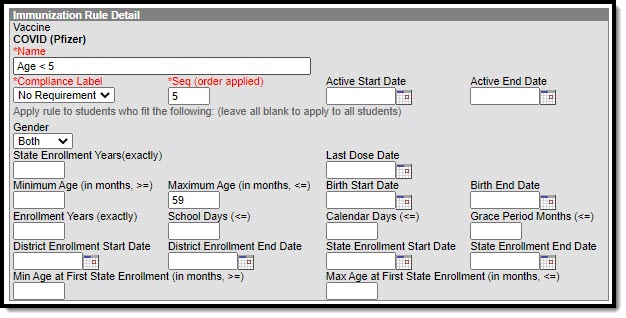
Students Under Age 5
Age < 5 = No Requirement
Select COVID (Pfizer) in the vaccine list.
Click the New Rule button.
Enter the following field values:
Name = Age < 5
Compliance Label = No Requirement
Seq = 5
Gender = Both
Maximum Age (in months, <=) = 59
Click the Save button.
Age less than 5
Students Age 5 and Over
The following COVID-19 vaccine rules should to be created:
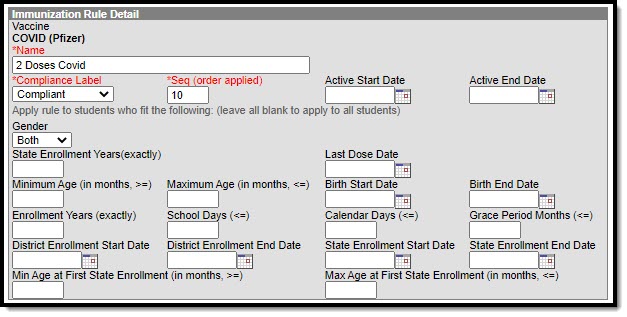
2 Doses COVID
Select COVID (Pfizer) in the vaccine list.
Click the New Rule button.
Enter the following field values:
Name = 2 doses Covid
Compliance Label = Compliant
Seq = 10
Gender = Both
Click the Save button.
2 Doses Covid
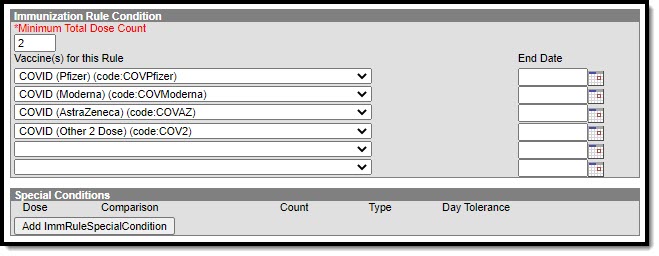
Now you need to add a new rule condition:
Select the rule you just created (2 doses COVID).
Click the New Rule Condition button.
Enter the following field values:
Minimum Total Dose Count = 2
Vaccine(s) for this Rule = COVID (Other 2 Dose), Pfizer, AstraZeneca, Moderna.
Click the Save button.
2 Doses Covid Conditions
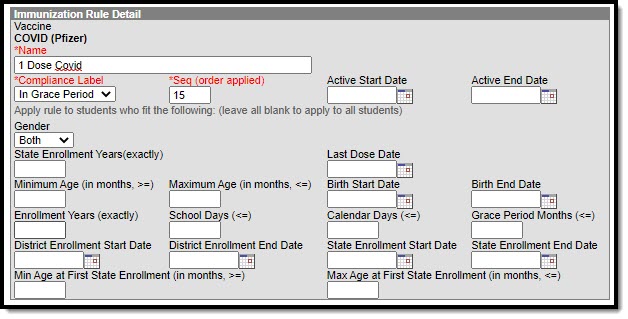
1 Dose COVID
Select COVID (Pfizer) in the vaccine list.
Click the New Rule button.
Enter the following field values:
Name = 1 dose Covid
Compliance Label = In-Progress (or In Grace Period)
Seq = 15
Gender = Both
Click the Save button.
1 Dose Covid
Now you need to add a new rule condition:
Select the rule you just created (1 dose Covid).
Click the New Rule Condition button.
Enter the following field values:
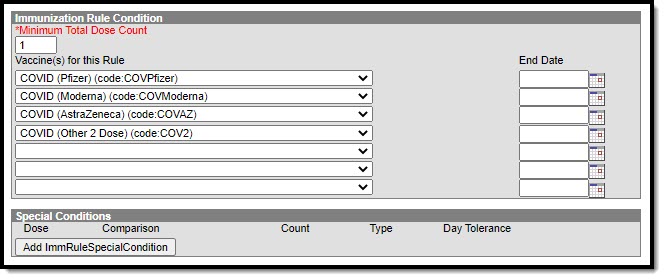
Minimum Total Dose Count = 1
Vaccine(s) for this Rule = COVID (Other 2 Dose), Pfizer, AstraZeneca, Moderna.
Click the Save button.
1 Dose Covid Conditions
Johnson and Johnson
Select COVID (Pfizer) in the vaccine list.
Click the New Rule button.
Enter the following field values:
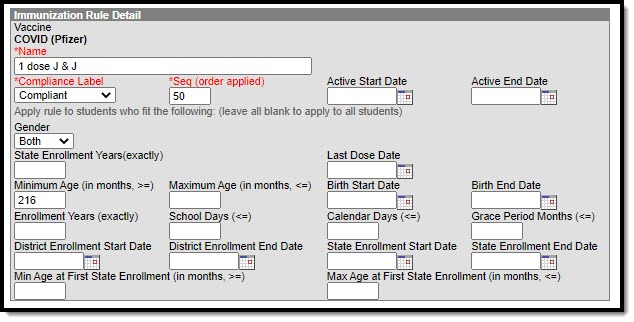
Name = 1 dose J & J
Compliance Label = Compliant
Seq = 50
Gender = Both
Minimum Age (in months >=) = 216
Click the Save button.
1 dose J&J
Now you need to add a new rule condition:
Select the rule you just created (1 dose J & J).
Click the New Rule Condition button.
Enter the following field values:
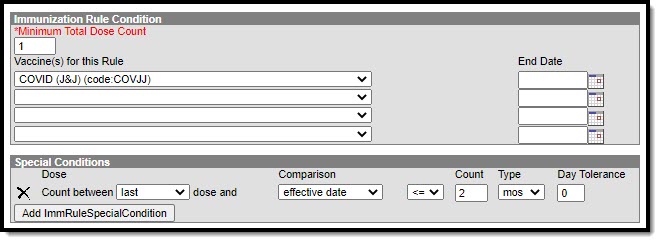
Minimum Total Dose Count = 1
Vaccine(s) for this Rule = COVID (J&J)
Click the Save button.
1 dose J&J Conditions
Default Non-Compliant
Default - Non-Compliant
Select COVID (Pfizer) in the vaccine list.
Click the New Rule button.
Enter the following field values:
Name = Default
Compliance Label = Non-Compliant
Seq = 99
Gender = Both
Click the Save button.
COVID Default
Once all vaccine rules have been added, you can start tracking student COVID-19 vaccine compliance and data.
Enter Vaccine Data
Tool Search: Student Immunizations
Navigate to the Student Immunizations tool to enter vaccination dates. Once the record is saved, additional date fields display to input booster doses.
 2 Doses Covid
 2 Doses Covid Conditions
 1 Dose Covid
 1 Dose Covid Conditions
 1 dose J&J
 1 dose J&J Conditions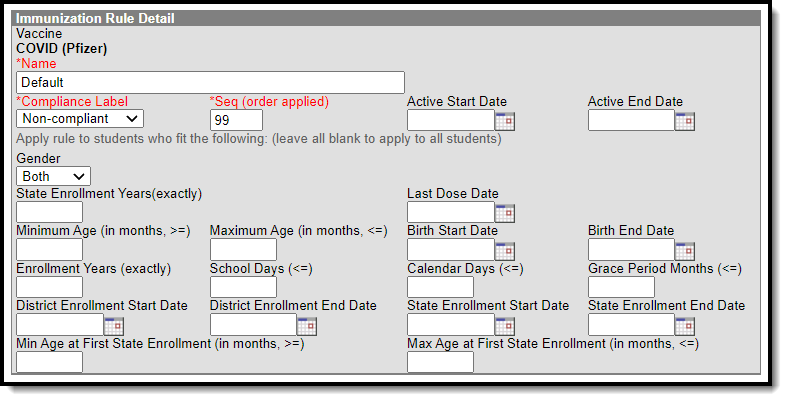
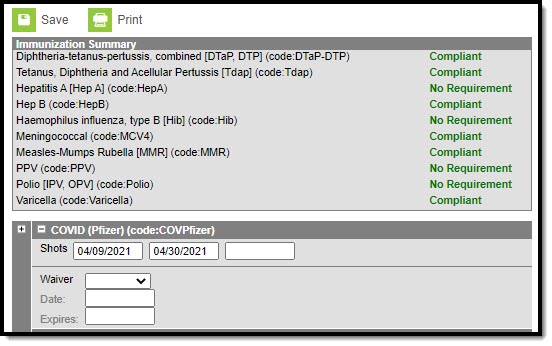 COVID Immunization Data Example